 Tutorial:
Creating Purchase Bill
Tutorial:
Creating Purchase Bill Tutorial:
Creating Purchase Bill
Purchase Bill
When a supplier sends a tax invoice for goods/material, the user needs to create a Purchase Bill in the system. This Purchase Bill is based on the Goods Receipt Note, which confirms that the goods have been received.
Creating a Purchase Bill is essential because it officially records the transaction in the system. This ensures that the company acknowledges the receipt of goods and the obligation to pay the supplier.
The Purchase Bill should be generated as soon as the supplier’s invoice is received. After creating the Purchase Bill, the payment is processed through the ‘Receipt/Payment’ interface in the Finance module.
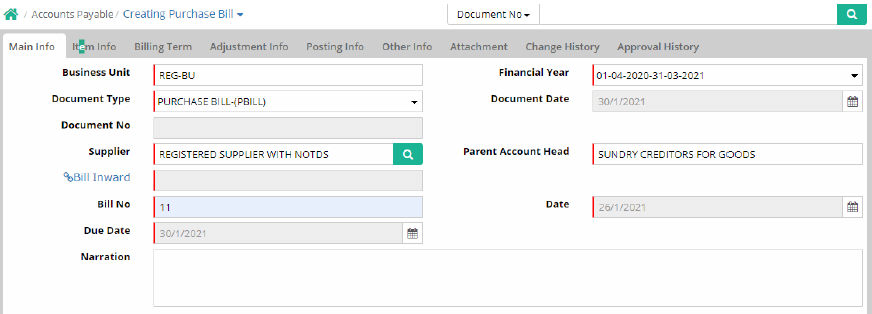
Main Info
Business Unit: Select the Business Unit against which Purchase Bill needs to be produced
As
soon as the business unit is selected, Financial Year and Document Type
get populated
Document Date: Enter the purchase
bill document date
Document No: It will be generated after saving the entry
Supplier: Select the goods supplier’s name
Bill Inward: Click the link to select
bill inward
Bill No: Enter the concerned bill
number
Date: Enter the bill date
Due Date: Mention the due date
Narration: Enter narration if any
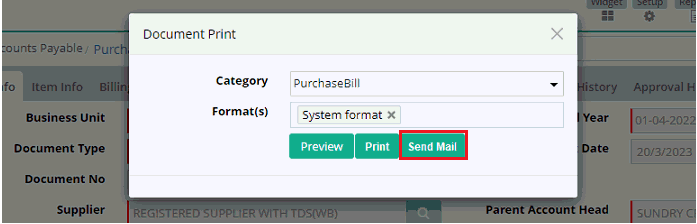
Document Print
User can preview, print and send document through mail.
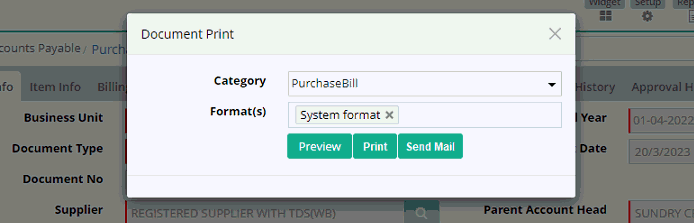
Sending Email
To send document through mail user is required to setup Email Template through Administration > Communicator > Email Template.
Sample Email Template
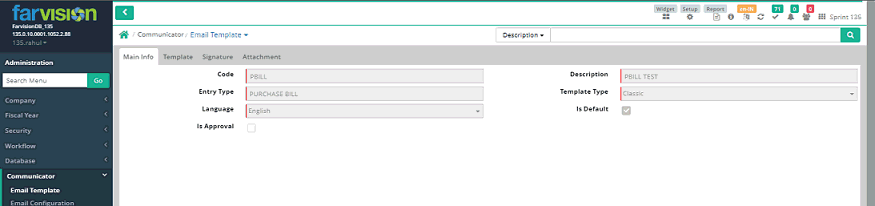
Entry type is to be selected as 'PURCHASE BILL'
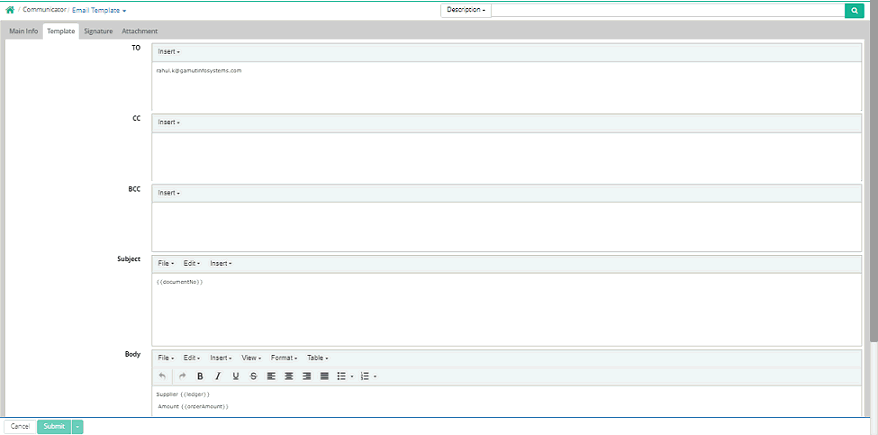
User can send Purchase Bill document through mail from Document Print option in Purchase Bill interface.
Item Info

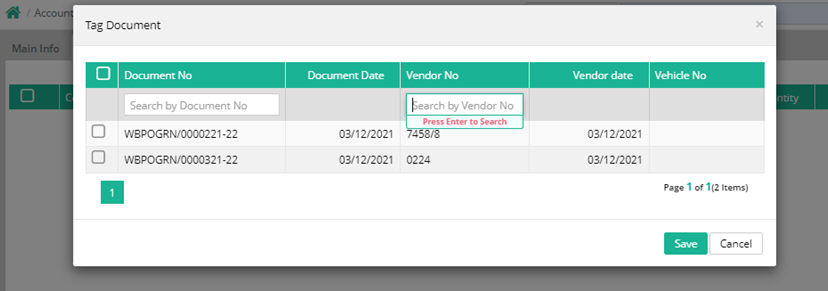
Based on requirement user can search & select any GRN document with its vendor number.

Main Info
Code: Search item code. If code is searched, description will be auto populated and vice versa
Description: If code is searched, description will be auto populated and vice versa
Unit: Unit will also come automatically
Brand/Make: Select brand/make if any
Specification: Provide specification of the brand or make. This is to be filled up if brand/make is selected
Make No/Model No: Provide make number or model number if brand/make is selected
Detail Description: Enter detail description of the item if required
Warehouse: Select the warehouse
Quantity: Enter item quantity
Rate: Specify the rate of the item
Amount: Quantity and rate will be multiplied and the total value will be displayed
Due Date: Due date can be entered
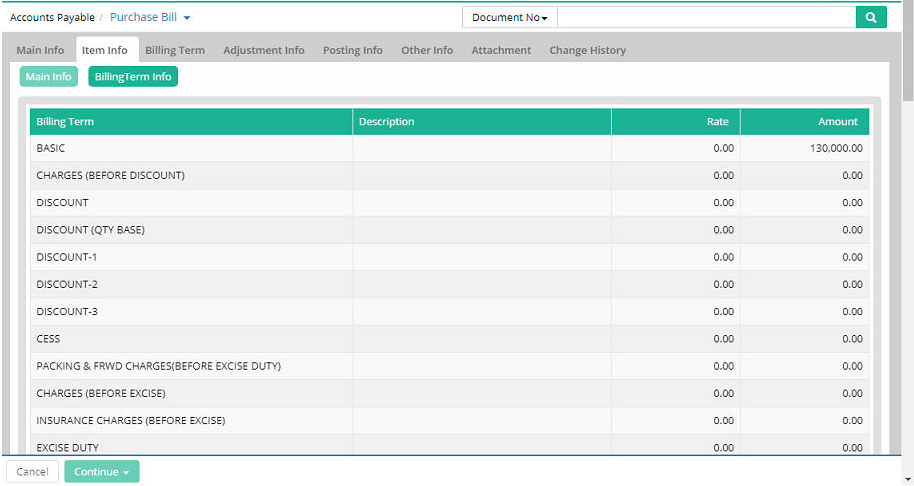
Billing Term Info
This tab shows different billing terms
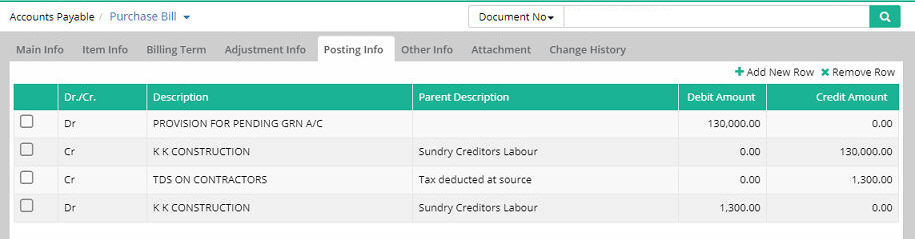
Posting Info
This tab Shows account posting details
Other Info
The other info tab will enable user to note information regarding vendor number, vendor date and remarks.

Notes:
1. Bill inward option can be made mandatory in Purchase bill
2. Net-Hold amount in Bill Wise Billing Term Footer
3. Purchase Bill Quantity can be Enabled or Disabled from Metadata
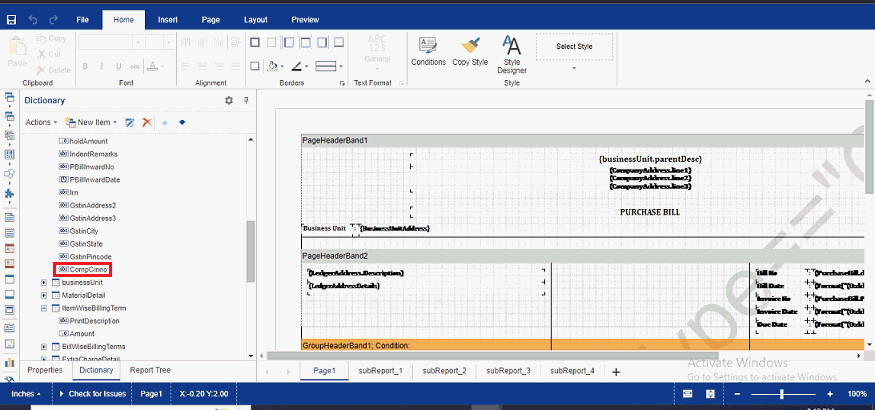
4. Company CIN No and Item Wise Billing Term field added in Purchase Bill print dictionary
1. Bill inward option can be made mandatory in Purchase bill
Steps to activate the bill inward mandatory validation in Purchase bill:
a) Please run sync process
b) Please follow the below navigation: Administration > Database > Metadata
Please click on Material & search the Entity Purchasebill

Now click on edit & click Properties

Please click on Bill inward option
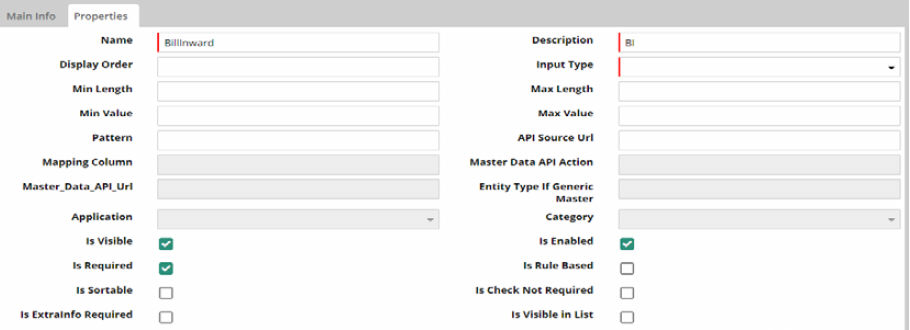
Please tick the ‘Is Required’ option and save.
Bill inward option in Purchase bill is now mandatory.
2. Net-Hold amount in Bill Wise Billing Term Footer
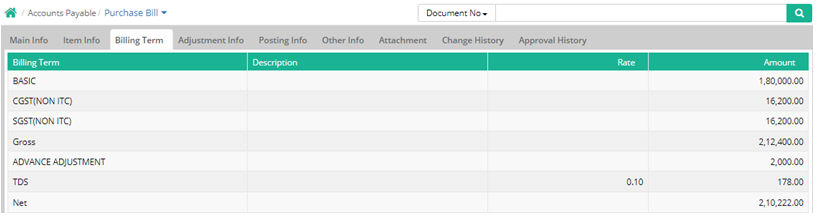
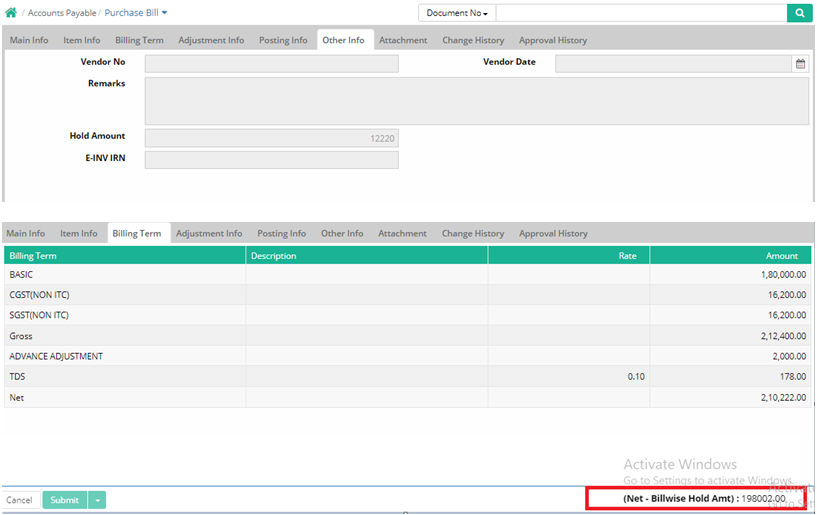
In case of hold amount has been entered in Purchase bill other info, new option released to check the net bill balance after deduction of the hold amount.
Sample Purchase bill billing term:
Other info with Hold amount:
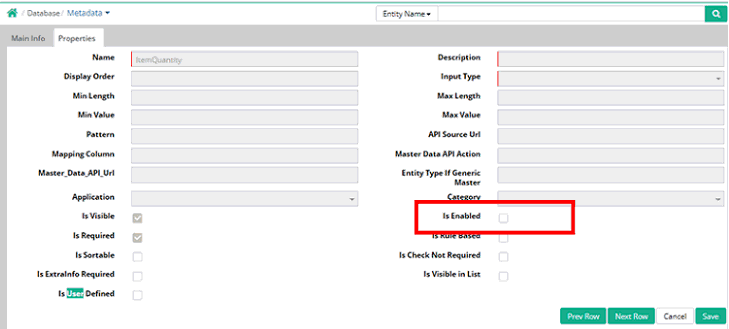
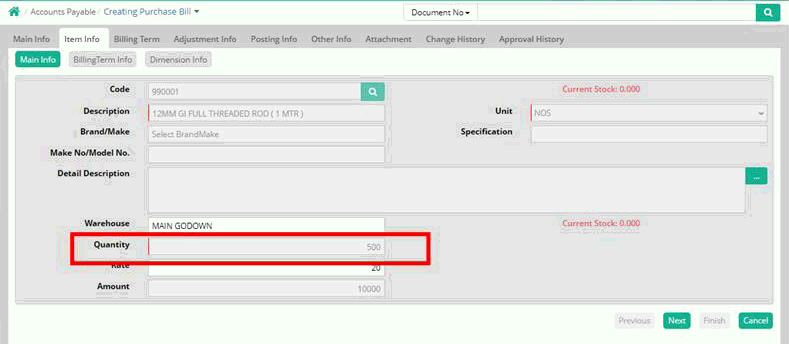
3. Purchase Bill Quantity can be Enabled or Disabled from Metadata
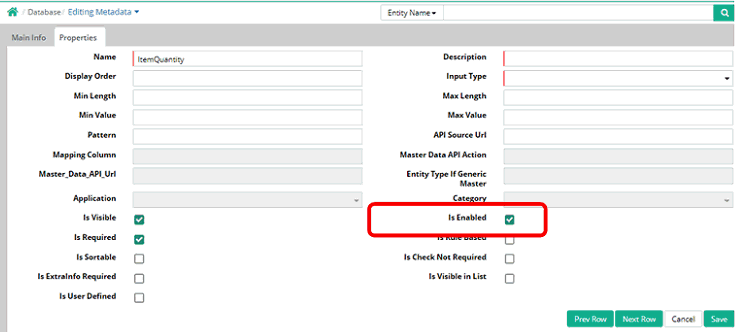
In purchase bill Item quantity can be enabled or disabled through Metadata at Administration module.
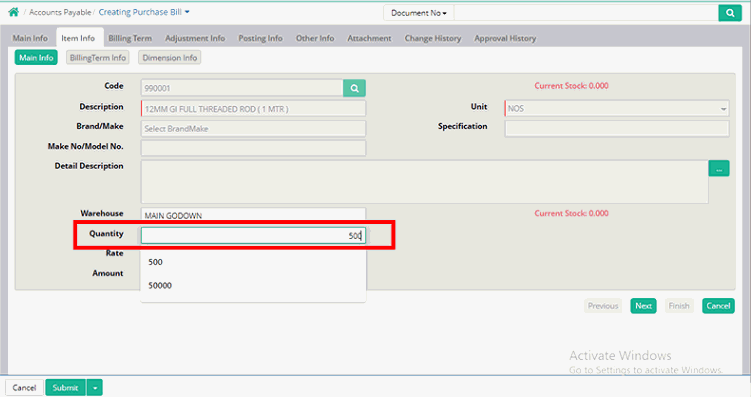
Metadata: Quantity Enabling

Purchase Bill: Quantity Enabled
After enabled from Metadata the same will be effective in Purchase Bill screen
Metadata: Quantity Disabling
Purchase Bill: After disabled from Metadata the same will be effective in Purchase Bill screen
4. Company CIN No and Item Wise Billing Term field added in Purchase Bill print dictionary
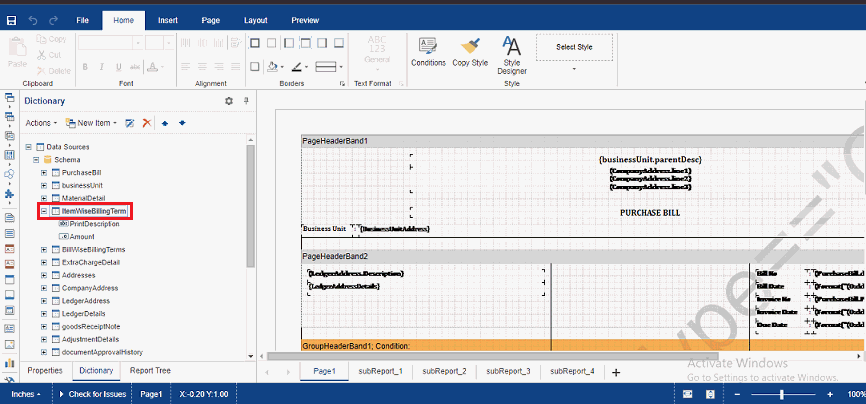
Reports: Following reports are available
2. Purchase Bill Posting Detail
3. Purchase Bill With Billing Term
Tutorial:
Creating Purchase Bill
© Gamut Infosystems Limited