Configuration Process
Mobile Configuration
Mobile configuration is required for each mobile app (both IOS and android) to enable push notifications. For details about Enterprise Name, server public IP and app credentials, please refer to the detailed help on Mobile Configuration.
Download Farvision Customer Portal App from
1. Apple Apps Store (For IOS)
2. Android Store (For Android)
Please type FV Owner on Google Play Store/Apple Apps Store to find and download the mobile application or download from the following URLs
| Download Links | |
| For IOS | https://apps.apple.com/in/app/fv-customer/id1598306876 |
| For Android | https://play.google.com/store/apps/details?id=com.gamut.fvcustomerportal&hl=en_IN&gl=US |
Cloud SetUp
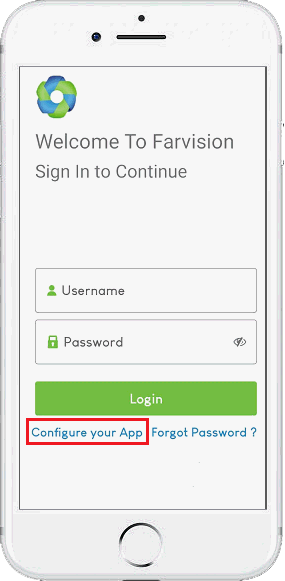
Step1: Install and open Customer Portal App. Press 'Configure Your App' to setup your account.
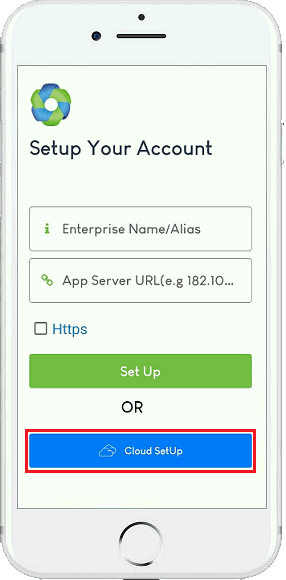
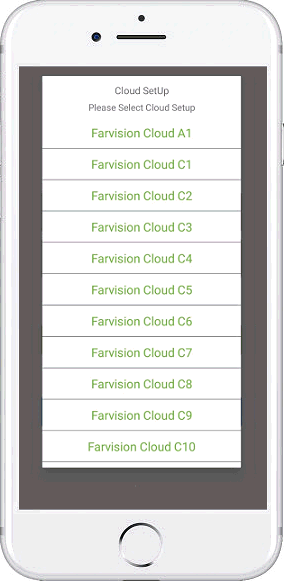
Step2: Press ‘Cloud SetUp’ if your Farvision application runs on Farvision Cloud server. Please contact your administrator to know your cloud server name. Choose your cloud server from “Cloud SetUp” option.
Step3: After account configuration, enter ‘User Name’ and ‘Password’ and press ‘Login’.
OR
Set Up
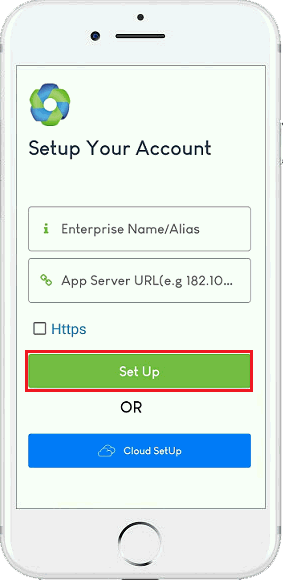
Step1: Install and open Customer Portal App. Press 'Configure Your App' to setup your account. Press ‘Set Up’.
Step2: Enter your Enterprise name and on premises server URL/IP. HTTPS is required to be checked if your server is SSL certified and you have entered domain name. If you have entered IP Address as server url then SSL is not required hence left this unchecked.
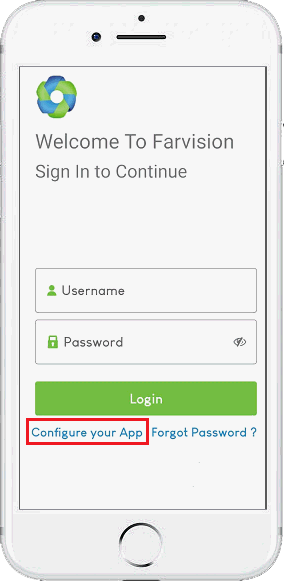
Step3:After account configuration, enter ‘User Name’ and ‘Password’ and press ‘Login’.
© Gamut Infosystems Limited