 Tutorial: Creating Task
Task
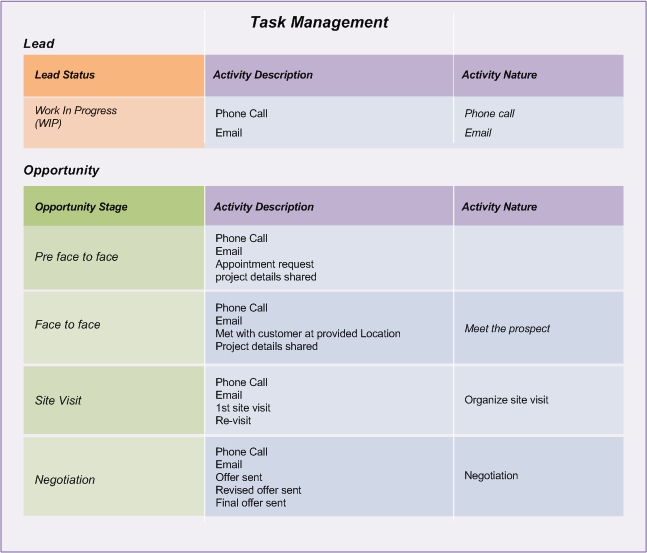
Type of communication or offer provided for the lead/opportunity/account/contact is recorded in this task page. Through “entry type” selection one can select any one option. Now based on this selection task data is inserted.
Through Task interface user can create new task.
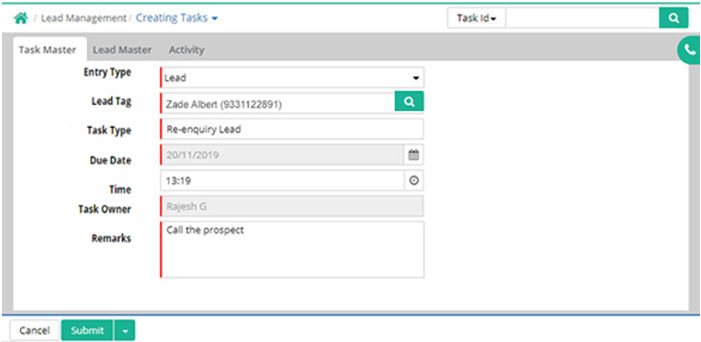
Entry Type: Select entry type from drop down list (Mandatory)
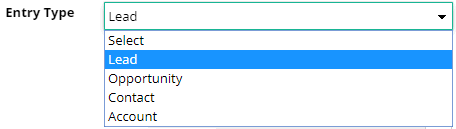
Opportunity Tag/Lead Tag/Contact Tag/Account Tag: This will change as per the entry type selection. Select the required from the drop down list
Task Type: Select activity type from drop down list. Phone Call, Email, Call Up Prospect etc. are some examples of task type.(Mandatory)(Record comes from Setup > Transaction Type > Activity Type).
Due Date: Enter due date of task with the help of calendar pop up (Mandatory)
Time: User is able to set time using clock
Task Owner: Select the name of the sales person who is to be allocated to the task (Mandatory). (Record comes from Setup > Sales Team > Sales Person).
Remarks: Enter any remarks on task (Mandatory)
Click 'Continue' and 'Save'.
Using Lead Master, Opportunity Master, Contact Master and Account Master tab shows details of Lead, Opportunity, Contact and Account details for a particular respectively.
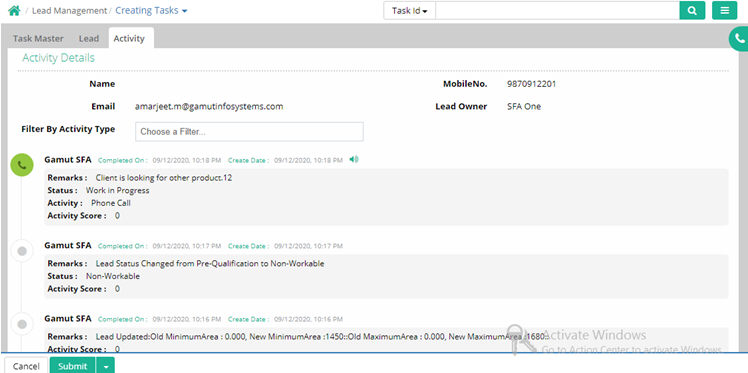
Using Activity tag details activity over a lead or an opportunity can be noticed.
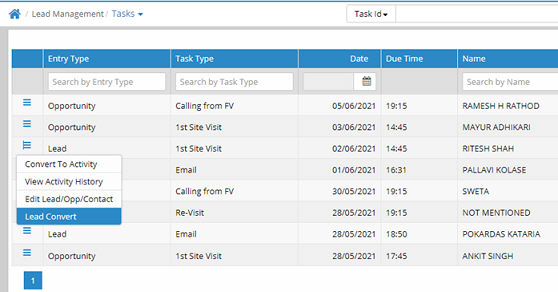
1. In Task without Lead, non workable Leads are excluded. If created Task is converted into Activity then those Leads are also excluded from the list.
2. In Task without Opportunity Booked and Lost Opportunities are excluded. If created Task is converted into Activity then those Opportunities are also excluded from the list.
3. Filter options for Product and Campaign Reference are there in Task Advance Search.

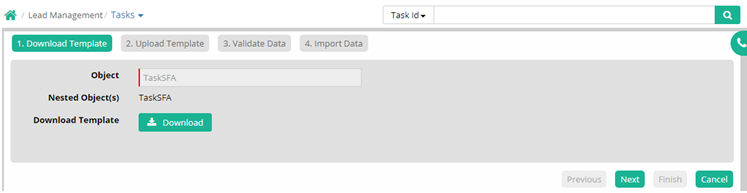
Tasks can be imported using a proper Task import template. In this process users have to download the Task template from the given import menu. Then this template has to be filled with proper information. Then upload this template and validate for any error. If it shows success after validation then import this template data in the system using the import button.
© Gamut Infosystems Limited