 Tutorial: Creating Journal Voucher
Tutorial: Creating Journal Voucher
Journal
Journal Voucher is used to record any type of transactions within same unit of a company.
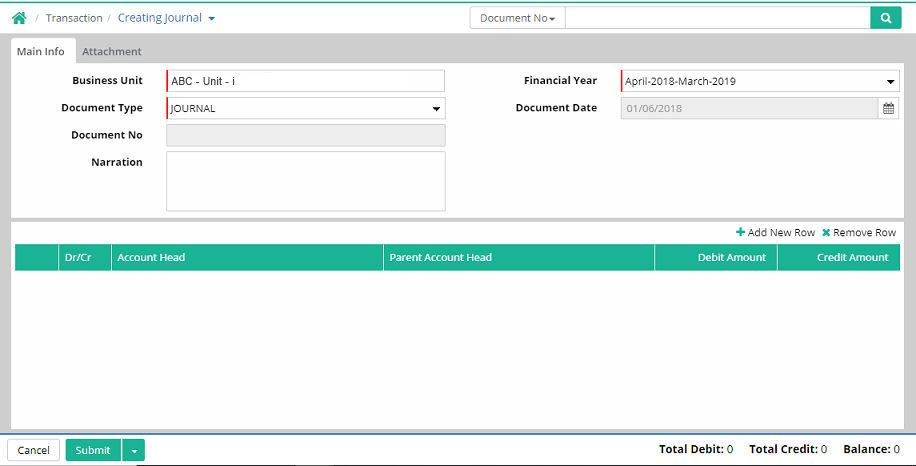
Business Unit: Select the Business Unit for which journal voucher will be made which comes from Business unit organizer (Administration > Company > Business unit organizer)
Financial Year: Select the financial year.
Document Type: Select the document type as required. All of these come from Administration > Company > Document Type. There are some default document types. However user can create their own description of the document types based on the category

Document
Date:
Enter document date
Document No.: The document number will be generated automatically when the entry is saved
Narration: Mention a short description about the journal voucher
Add New Row
To make a new entry for Debit, click ‘Add New Row’ link.
A. Main Info

Dr./Cr.: Select
any of the two options including debit and credit
Account
Head:
Choose the account head. The new journal voucher entry will come under
this account head
Parent Account Head: Select the parent account head
Amount: Enter
the debit/credit amount
B. Other Info
In this section user needs to enter narration

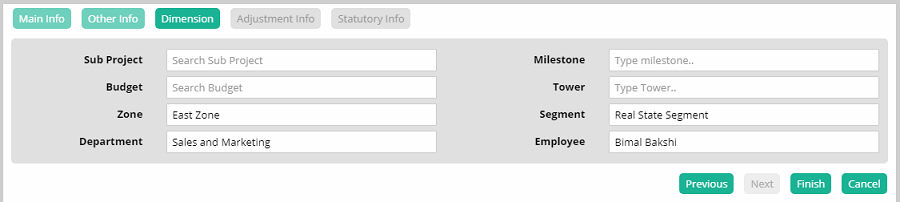
C. Dimension
For construction related dimension

Sub Project: Select the name of the Sub Project (Sub Projects come from Engineering > Activity Management)
Budget: Select budget name (Budget comes from Engineering > Budgeting)
Zone: Select zone of the sub project (Zones come from Administration > Setup)
Milestone: Type the milestone
Tower: Type the name of the tower
Segment: Select the segment (Segments come from Administration > Setup)
For employee related dimension

Zone: Select zone of the sub project (Zones come from Administration > Setup)
Segment: Select the segment (Segments come from Administration > Setup)
Department: Select the department (Departments come from Payroll Master)
Employee: Select the name of the employee (Name of the employees come from Payroll Master)
Click 'Finish'. The Journal Entry for Debit gets completed. Now save the entry.
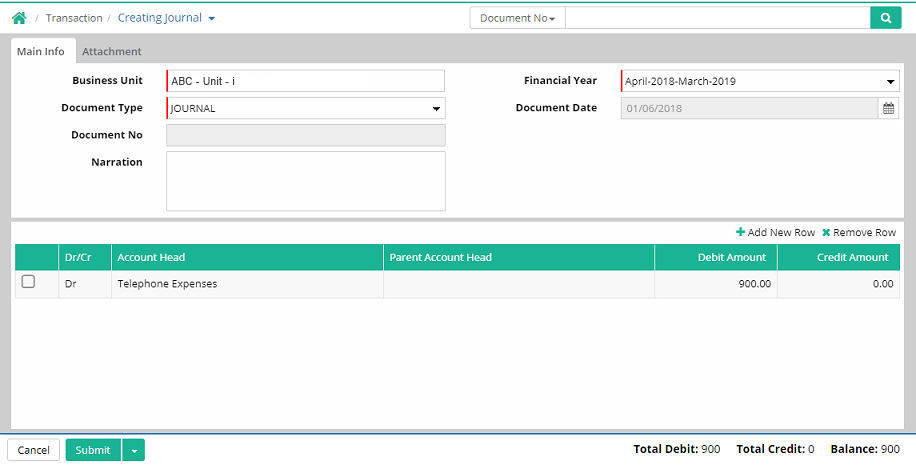
To make a new entry for Credit, click ‘Add New Row’ link.
A. Main Info
Select Cr, Account Head and enter Amount

B. Other Info
Enter narration

C. Dimension
Enter dimension information
Click 'Finish'. The Journal Entry for Credit gets completed. Now save the entry.
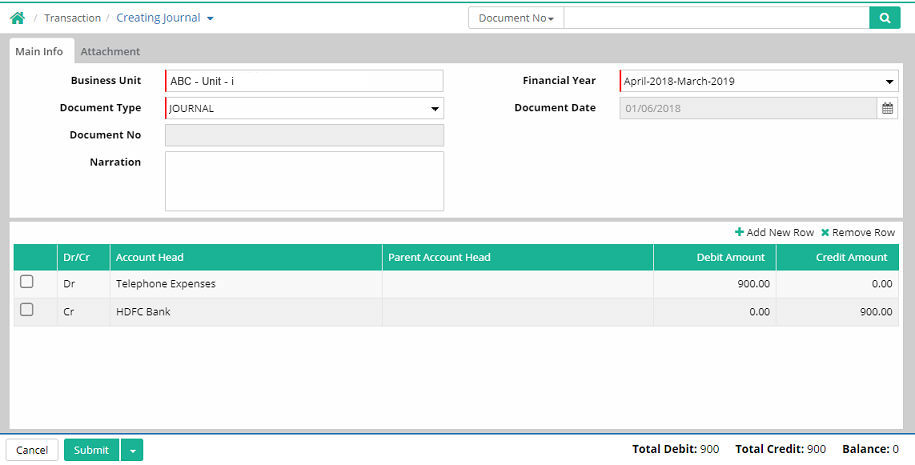
Click ‘Submit’ to stay in the form and make another entry.
Click ‘Save & Close’ to save the entry and exit from the interface.

Change History is shown in Journal Imported Entries

Reversal Journal TOD
Select the Document Type as ‘Reverse Journal’
In the transaction General Ledger and Normal Sub Ledger ledgers will be allowed under this Document Type.
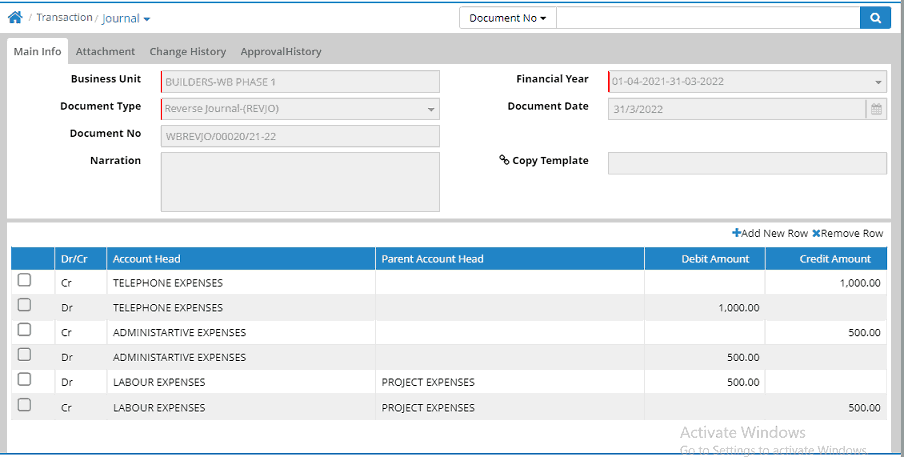
Restriction of the Reverse Journal
a. The internal document reverses the original document.
b. The reverse document will be created the next day of the original document.
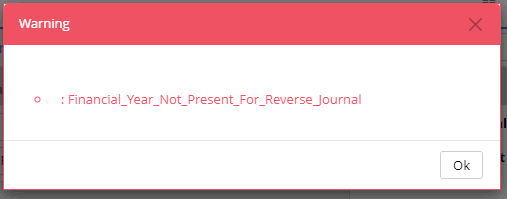
c. If the reverse document creation happens to be next financial year, then the financial year must be created.
d. If the financial year is not created then entry cannot be saved.
e. Edit of both the original and reverse cannot be done.
f. Delete of only Original document allowed.
Tutorial: Creating Journal Voucher
© Gamut Infosystems Limited