
Queue management allows for processing of data in the background so that the user does not have to wait while data is being processed. Once the report or process is completed a notification will be provided that the job has been completed. It is important to use queues so that server utilization is not disturbed during peak working hours.
There are two types of queues
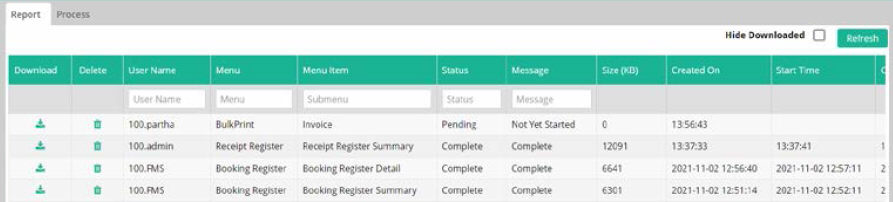
Notifications

Some reports and bulk print format can be queued. There are two types of
processes
● Fire and forget - the queue is started on demand when the report has to be processed
● Repeat every few minutes - any data which is added for the bulk processing will be processed, and checking for new data will be done on a predefined frequency.
Fire and forget
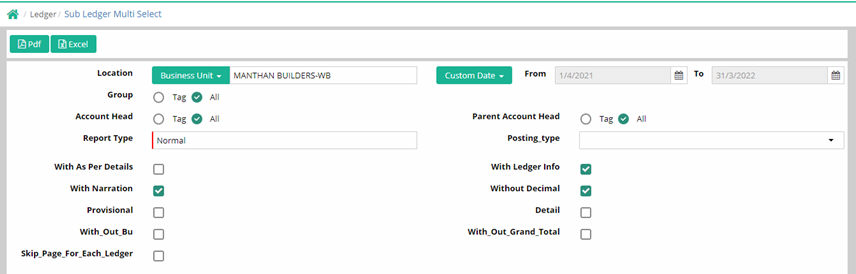
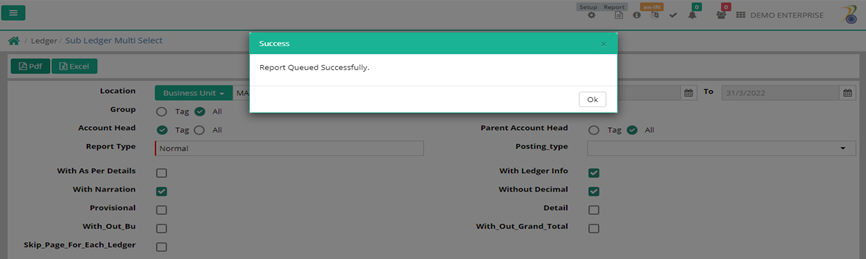
A job id is assigned against reports which are being queued under fire and forget. A notification will be sent to the user’s device once the report is ready. Reports which have been queued can only be printed from the Queue management console. Queued reports cannot be printed (either PDF or Excel) from the menu interface from which generation of report was started.
Example: Application detail register, Booking register, Invoice register and Receipt register, Indent register, Purchase order register, Goods receipt Note register and Purchase Bill register. Examples for Bulk Printing of documents are Invoice, Booking annexure, Applicant Ledger.
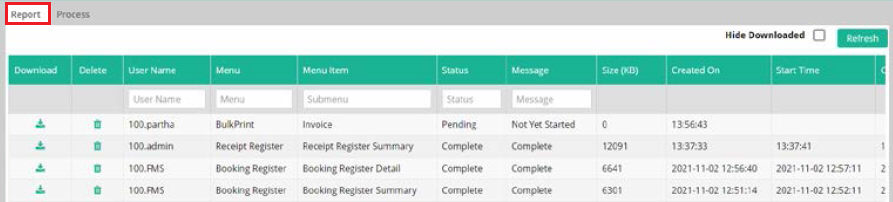
Repeat every few minutes
Queues which repeat every few minutes are used for bulk printing of documents.
No job id assigned as it is a continuous loop where more documents which
are added for bulk processes are picked up. After receiving the notification,
search Bulk Printing in the menu column and then for the relevant menu
Item.
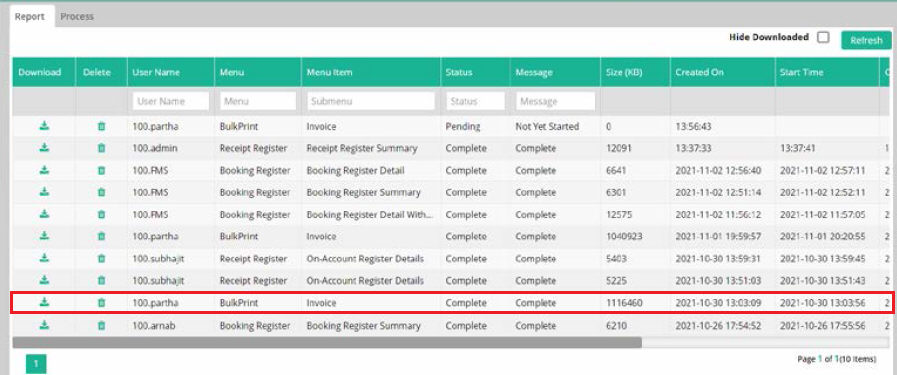
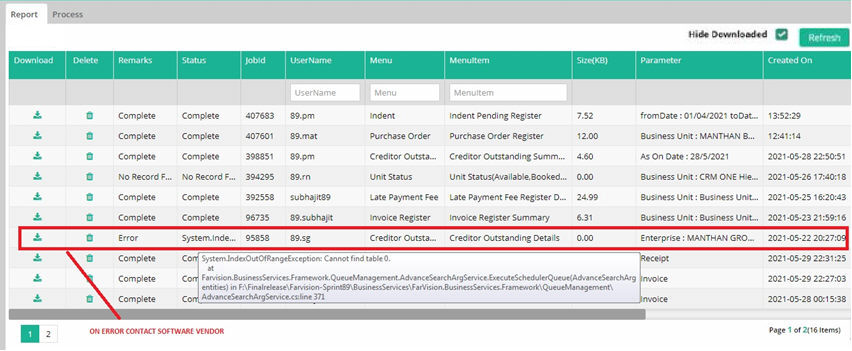
Download: Once the report is complete, it can be downloaded and saved locally. The report will be automatically deleted after downloading. Reports will be visible in the queue console until the reports are downloaded. Users are allowed to download their reports while admin users can download report of any user.
Delete: Pending and generated report can be deleted. If the status is pending, the delete button will stop the processing of the report. If the status is Complete, delete will physically remove the report and it will not be available, it is deleted from the server.
Status: Pending, In Process, Complete, Error, No record found are the status of the queued report.
Remarks: This column provides details of the status. Example, For In process, it will show start.
Desktop notification will be shown after completion of the job.
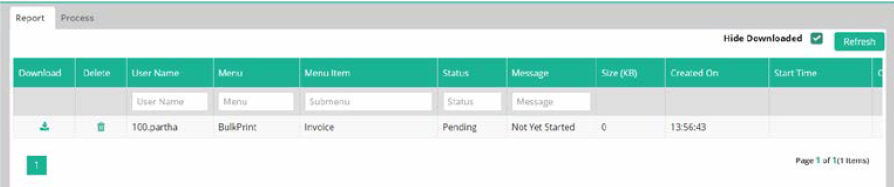
Some reports a process has to be run before the report can be generated.
Example: Finance module cash flow report generated through process method and process report will be downloaded from queue console under the Process tab.
Property management invoice generated through bulk invoice menu after notification will be downloaded from the queue console.


© Gamut Infosystems Limited